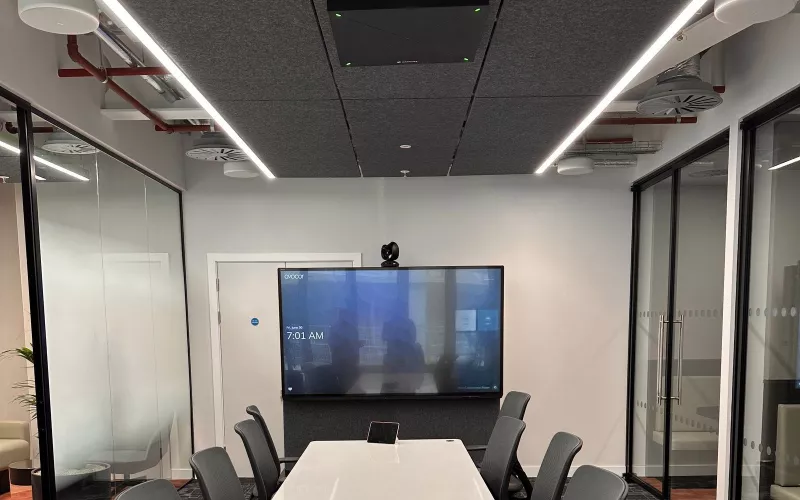
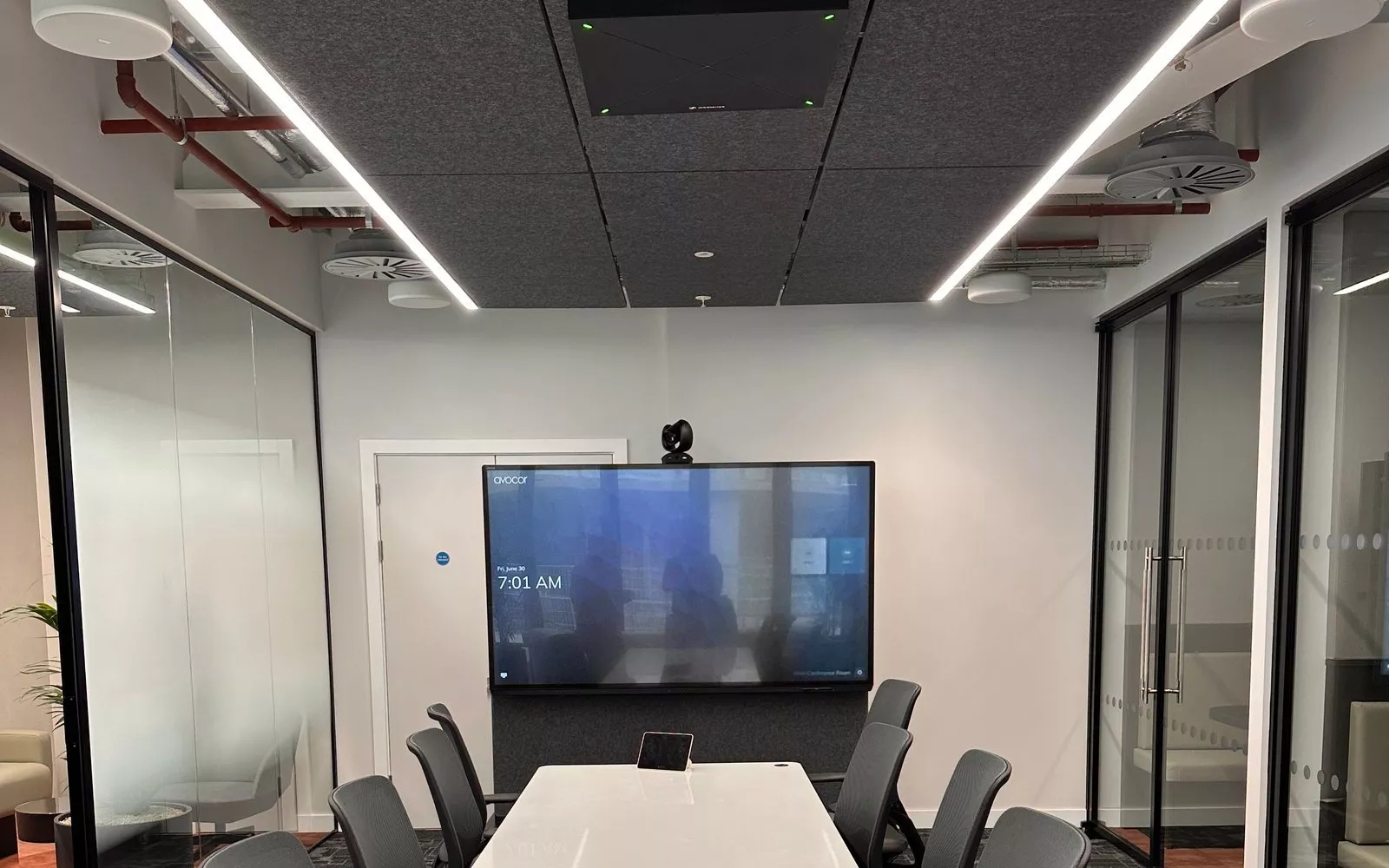
Wireless presentation lets anyone in a meeting put their laptop screen on the room display without hunting for the right cable or adapter. In a Dublin office running Microsoft Teams Rooms, you can often do it with what the room already has, while a dedicated system suits rooms with lots of visitors or a mix of laptops and phones.
The single most common complaint we hear about meeting rooms is not the camera or the sound. It is the five minutes at the start of every meeting while someone looks for an HDMI adapter that fits their laptop. Wireless presentation fixes that, but there are several ways to do it, and the right one depends on the room, the people using it and how your IT team manages devices.
The ways to share a screen in a meeting room
| Method | How it works | Best for |
|---|---|---|
| HDMI or USB-C cable at the table | Plug in and the room switches to the laptop | A dependable fallback in every room |
| Share from the Teams meeting | Join the room's meeting and share from Teams | Staff laptops in rooms that already run Teams Rooms |
| Casting to a Teams Room | Cast to the room without joining a meeting | Quick local sharing on staff devices |
| Dedicated wireless presentation system | A button, an app or built in casting to a receiver at the screen | Visitors, mixed devices and rooms without Teams Rooms |
Wireless presentation in a Teams Room
Many of the rooms we fit in Dublin run Microsoft Teams Rooms, which we cover in our guide to Teams Rooms for Dublin offices. In those rooms, anyone in the meeting can share their screen from Teams itself, and the content reaches the room display and the people joining remotely at the same time.
Microsoft has also added Miracast casting to some Teams Rooms. Its page "Miracast for Microsoft Teams Rooms" on Microsoft Learn sets out the conditions. The room needs a Teams Rooms Pro licence and an all in one touch board Teams Rooms on Windows device; rooms with a separate console are not yet supported, and Miracast isn't available for Teams Rooms on Android. It is switched off by default and turned on in the Teams Rooms Pro Management Portal. Users then cast with the Windows Cast feature (Windows key and K), and HDMI and Teams Cast stay available alongside it.
Microsoft's advice on the connection PIN is worth following: it recommends setting the PIN requirement to Always on, to avoid accidental shares. In an office where the meeting rooms sit side by side behind glass, that stops someone casting to the room next door by mistake.
Dedicated wireless presentation systems
A dedicated system puts a receiver at the screen and gives people a way to send to it: a button that plugs into the laptop, an app, or the casting built into their device. These suit:
- Rooms used by visitors, clients or students, whose laptops your IT team does not manage.
- Rooms where people present from phones and tablets as well as laptops.
- Training rooms and boardrooms with no Teams Rooms system.
- Rooms where several people need to put content on the screen in turn.
Some systems also let a visitor run a call from their own laptop while using the room's camera, microphones and speakers. Our post on bring your own device meeting rooms covers that side.
The network matters as much as the box
Wireless presentation is video over a network, so a poor network shows up as a laggy or frozen screen. For Dublin offices we plan:
- A wired connection to every receiver and room system, never Wi-Fi alone.
- A clear decision on how guests connect: a guest network that can reach the room receiver, or a system that does not need the guest to join your network at all.
- Good Wi-Fi coverage in the meeting rooms, because the laptop end is wireless.
Microsoft's Miracast page notes that casting over the network is preferred and peer to peer is used if the laptop and the room can't communicate over the same network, which is one more reason to involve IT early. Our wired and wireless networks page explains how we design meeting room networks.
Keep a cable in the room
Even the best wireless presentation system has days when a laptop update or a network change gets in the way. We fit a cable connection at the table in every room as the fallback, so a meeting never stops for want of a screen.
Choosing for a Dublin office
For an office with Teams Rooms and managed laptops, sharing from Teams, with a cable at the table, may be all you need. For client facing rooms, boardrooms with frequent visitors and training rooms, a dedicated system is usually worth it. Our meeting room AV page sets out how we fit each size of room, from huddle rooms to boardrooms.
Questions we are often asked
Do we need special software on every laptop?
It depends on the method. Teams sharing and built in casting need nothing extra; some dedicated systems use a small app or a plug in button instead.
Can visitors present without joining our network?
With the right system, yes. That is one of the main reasons to choose a dedicated system for client facing rooms.
Can people in the meeting remotely see what is shared?
Yes, when the content is shared into the Teams meeting. Content cast only to the room display is seen in the room.
Can someone in the next room share to our screen by accident?
Not if the system asks for a code shown on the screen. Microsoft recommends always requiring the PIN for Miracast in Teams Rooms.
Is a cable still needed?
We recommend one in every room as a fallback.
If your Dublin meeting rooms still start with a hunt for adapters, we will look at the rooms, the network and how your team works, and recommend the simplest wireless presentation set up that fits. See also our Teams Rooms installation in Dublin page.
Book a consultation or call Dublin on 01 906 9326.
- Log in to post comments